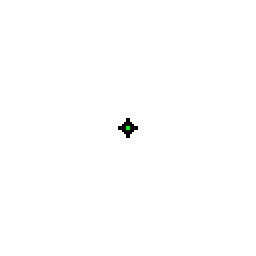
Drawn from the code and zoomed in. In the game it scales with your resolution.
Community crosshair · Dot
kyruu
Shared by kyruu_098 in the Ascend community.
Import code
0;P;c;8;b;1;t;1;o;0.2;z;1;a;1;0t;0;0l;0;0v;0;0o;0;0a;0;0s;0;0e;0;1t;2;1l;0;1v;0;1o;10;1a;0;1s;1;1e;1;u;FFFFFF;d;1;h;1;0g;0;1g;0;0f;1;1f;1;0m;1;1m;1;0b;1;1b;1;m;0- Shape
- Dot
- Copied
- 1 copy
- Added
- Sep 11, 2026
Adding your own crosshair comes with Ascend accounts.
Import
Four steps, about a minute.
- 01
Copy the import code
Click Copy on any card in Ascend's gallery. The full import string lands on your clipboard, ready to paste.
- 02
Open VALORANT settings
Launch VALORANT, press Escape, and open Settings. Switch to the Crosshair tab in the top navigation bar.
- 03
Open the import dialog
On the Crosshair tab, click Import Profile Code at the top right. A small text field opens, ready for a code.
- 04
Paste and import code
Paste the code (Ctrl+V or Cmd+V) and click Import. VALORANT applies color, outline, dot and lines instantly.
- Copy
- Settings
- Crosshair
- Import
Related